
How to Change Your Windows 11 Password and PIN
November 12, 2025
Need to change your password or PIN on a Windows 11 computer? We have you covered!
Changing Your Password
- Open Settings
- Click the Start button (Windows logo in the bottom left corner)
- Click on "Settings" (it looks like a gear icon)
- Go to Sign-in OptionsClick on "Accounts" in the left sidebar
- Click on "Sign-in options"
- Change Your PasswordFind the section labeled "Password"
- Click on it to expand the options
- Click the "Change" button
- Enter your current password when asked
- Type your new password, then type it again to confirm
- Add a password hint that will help you remember it (but don't make it too obvious!)
- Click "Next" and then "Finish"
Changing Your PIN
- Open Settings (if you closed it)
- Click the Start button
- Click on "Settings"
- Go to Sign-in OptionsClick on "Accounts" in the left sidebar
- Click on "Sign-in options"
- Change Your PINFind the section labeled "PIN (Windows Hello)"
- Click on it to expand the options
- Click the "Change PIN" button
- Enter your current PIN
- Type your new PIN (it must be at least 4 numbers)
- Type the new PIN again to confirm
- Click "OK"
Important Tips:
- Make sure you remember your new password and PIN before closing the Settings window
- Write them down and keep them in a safe place if needed
- Your PIN is usually easier and faster to use for daily login
- Your password is important for other security features, so keep both secure
That's it! Your password and PIN are now updated.
We've seen it tones of it in just the last few weeks. Different customers. Different emails. Same result: hacked computers, stolen passwords, and hackers controlling their machines remotely. Here's what's happening—and what you need to know to avoid becoming the next victim.
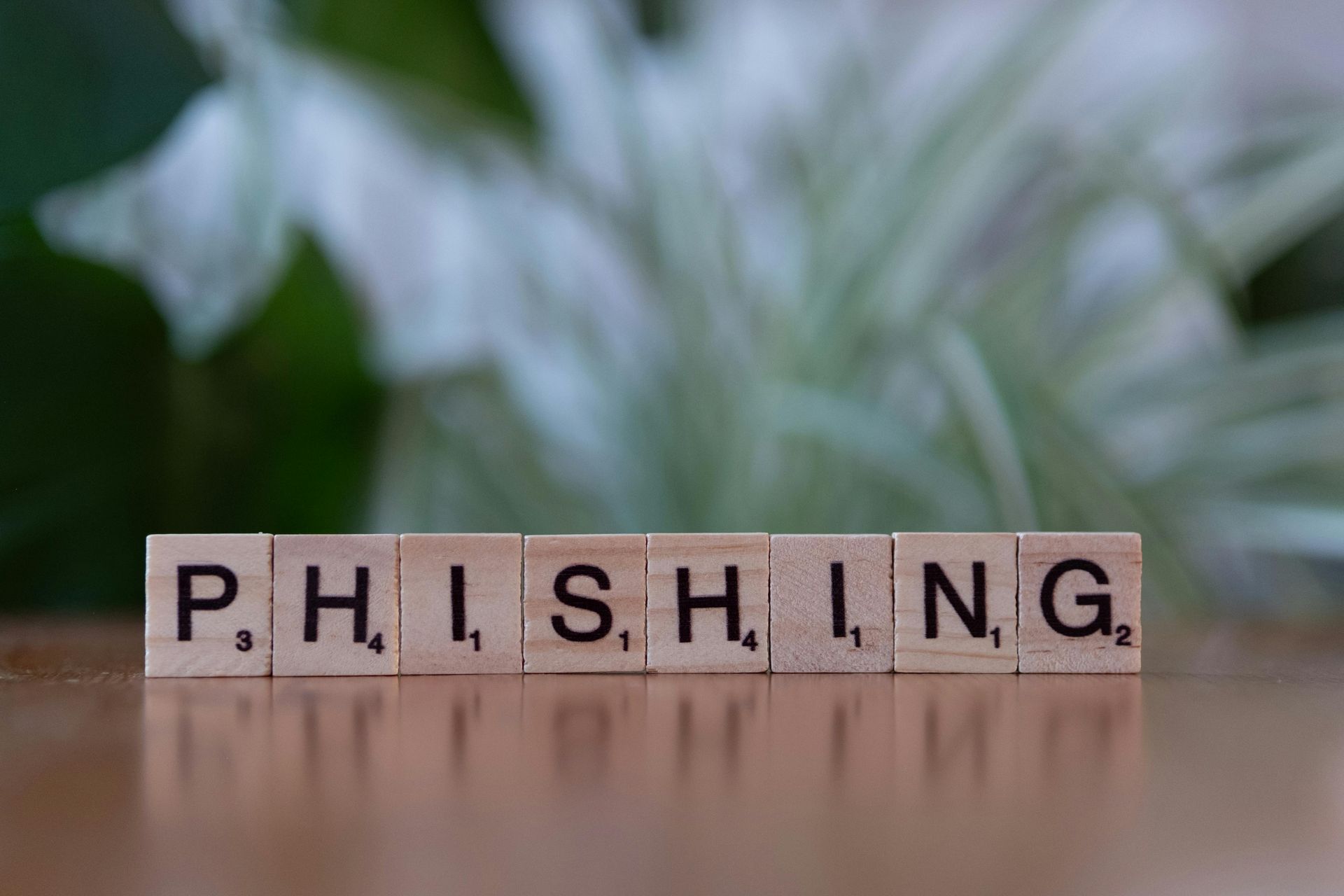
You get an email from your bank. It says there's a problem with your account. Click this link immediately to fix it. You click. You enter your password. Congratulations—you just gave a hacker everything they need to steal your money. That's phishing. And it's the number one way people get hacked. Here's how to spot it before it's too late.

If you've ever had your screen hijacked by a scary pop-up claiming your computer is infected and demanding you call "Microsoft Support" immediately - you're not alone. These scareware attacks are one of the most common issues we see at Top City Tech, and they're getting more sophisticated every day. The good news? There's a simple fix that takes just a few minutes.